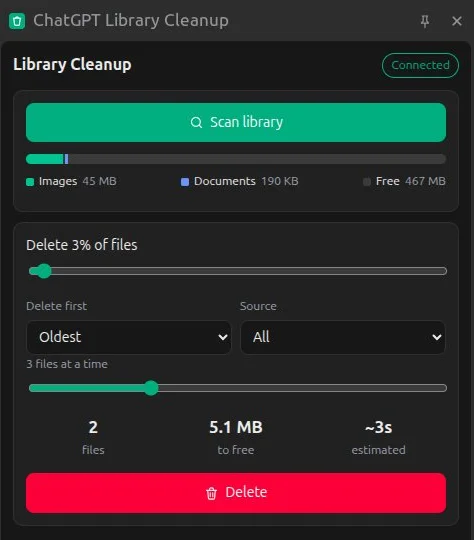
How to use
- 1Click Add to Chrome, then open chatgpt.com/library and sign in as usual.
- 2Click the extension icon to open the side panel and click Scan library.
- 3Choose how many files to delete, check the space you'll free, and click Delete twice to confirm.
When your ChatGPT Library needs a cleanup
Every image ChatGPT creates for you and every file you upload (PDFs, spreadsheets, screenshots) is kept in the Library and counts toward your account’s storage. After a few months, especially if you generate a lot of images, the Library can reach hundreds or thousands of files. Once it’s full, ChatGPT tells you you’re out of storage and you can’t upload anything new.
ChatGPT lets you delete files one at a time. That’s fine for a handful, but for a few hundred files it takes an afternoon of clicking. This extension does it for you: it scans the whole Library, picks the files worth removing and deletes them in bulk in a few minutes.
What it does
- Shows what’s using the space. Scans every page of the Library, split into images and documents, with how much space is left.
- Deletes by percentage. Drag the slider to delete 5%, 20% or everything. Choose oldest first (gradual cleanup), largest first (most space back with the fewest files) or newest first.
- Filters by source. Only images ChatGPT generated, only files you uploaded, or both.
- Previews before deleting. Before you click, it shows how many files will go, how many MB you’ll free and roughly how long it takes.
- Fast without getting blocked. Runs 1 to 8 deletions in parallel (3 by default). When ChatGPT says it’s busy, the extension waits and retries instead of stopping halfway.
- Stop any time. Live progress, time remaining and a Stop button.
The interface is available in English and Vietnamese.
Safety and privacy
The extension runs only on chatgpt.com and uses the session already signed in to your browser, exactly as if you were clicking delete yourself. There’s no middle server, no account to create and no tracking code. The Delete button needs two clicks, and deleted files go to ChatGPT’s trash.
Tip: the first time, pick a small percentage (around 5–10%) with oldest first to see the result, then increase it.
Frequently asked questions
Does it delete my chats?
No. It only deletes files in the ChatGPT Library: images ChatGPT generated and files you uploaded. Your chats, Memory and settings are not touched.
Can I undo a deletion?
Deleted files go to ChatGPT's trash, just like when you delete them in the ChatGPT interface. To be safe, start with a small percentage and oldest-first; the extension always asks you to confirm before deleting.
Does the extension see my password or ChatGPT data?
No. It has no server, needs no account and sends nothing anywhere. It runs only on chatgpt.com, uses the session already signed in to your browser, and calls the same endpoints the ChatGPT Library page uses.
Is the storage freed right away?
Yes. With the way ChatGPT works today, the space is freed as soon as a file is deleted. Click Scan library again to see the new numbers.
Does it work on my phone?
Not yet. Browser extensions only install on a computer, in Chrome, Edge, Brave or another Chromium-based browser. On a phone, send this page's link to your computer and install it there.
Is this an official OpenAI tool?
No. It's a free extension made by the Free Tools team and is not affiliated with OpenAI. ChatGPT is a trademark of OpenAI.